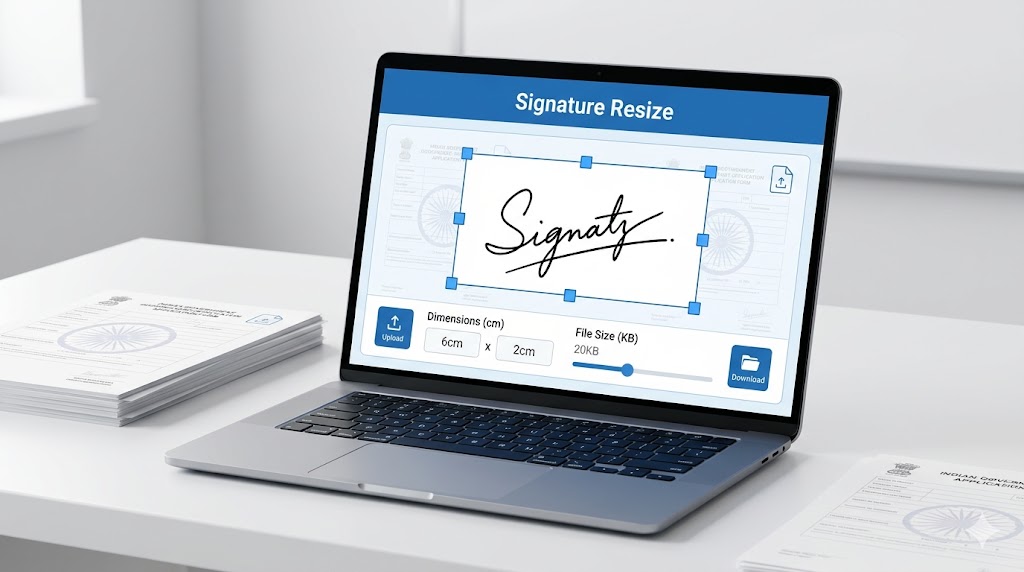
How to Resize Signature for SSC CGL 2026 Online (Correct Size & KB Guide)
Hello friends! Are you going to fill the SSC CGL 2026 exam form? That is very good. But you must upload your signature online. If your signature size is wrong, your form will be rejected. Don’t worry. I will teach you step by step. I will use very easy English. A 5th class student can also understand. Let’s start!
What is SSC CGL 2026?
SSC CGL is a big government exam in India. SSC means Staff Selection Commission. CGL means Combined Graduate Level. If you pass this exam, you can get a government job. Before the exam, you have to fill an online form. In that form, you need to upload two things:
- Your photo
- Your signature
In this article, we will only talk about your signature.
Govt Exam Photo Compressor & Resizer
Why is the Correct Signature Size Important?
SSC computers are very smart. They check every file. If your signature is too big or too small, the computer will show an error. Then you cannot submit your form. So we must make the signature exactly as SSC wants.
SSC CGL 2026 Signature Rules (Size & KB)
Please read this table carefully. These are the official rules.
| Item | What SSC Wants |
|---|---|
| Signature Width | 4 cm (centimeters) |
| Signature Height | 2 cm (centimeters) |
| File Format | JPG or JPEG (NO PNG, NO PDF) |
| File Size | 10 KB to 20 KB |
| Background | White or very light colour |
| Ink Colour | Black or dark blue |
Note: Sometimes SSC also gives size in pixels. That is about 140 pixels width and 60 pixels height. But it is easier to use centimeters. Always check the official notification for 2026.
Govt Exam Photo Compressor & Resizer
What Tools Do You Need?
You don’t need to buy any software. You can use free tools. Here are your options:
- MS Paint – Comes free with Windows. Very easy.
- MS Word – Also free.
- Online resizer websites – Like smarttoolswala.com (I will tell you why this is good).
- Mobile apps – Like Photo Resizer.
For this article, I will teach you using MS Paint first. Then I will show you how to use smarttoolswala.com to make the file size (KB) perfect.
Step-by-Step Guide to Resize Signature Using MS Paint
Follow these steps like a game. Do one step at a time.
Step 1: Take a Photo of Your Signature
Take a clean white paper. Use a black or dark blue pen. Sign your name nicely. Then take a photo using your mobile phone. Make sure the room has good light. No shadows on the paper.
Step 2: Move the Photo to Computer
Send the photo from your mobile to your computer. You can use a USB cable, email, or WhatsApp Web.
Step 3: Open the Photo in MS Paint
Right-click on the photo file. Click Open with → then click Paint. Your photo will open in Paint.
Step 4: Crop the Extra White Space
You will see a lot of empty white area around your signature. We need to remove that.
- Click on the Select tool (it looks like a dotted rectangle).
- Draw a box around your signature only. Don’t take too much white space.
- Then click Crop. Now only your signature will be there.
Step 5: Resize to 4 cm Width and 2 cm Height
Now we change the size.
- Click on Resize button at the top.
- A small window will open. Click on Pixels.
- Uncheck “Maintain aspect ratio” (because we want exact 4cm x 2cm).
- Now type 151 in Horizontal box (width). Type 75 in Vertical box (height).
- Click OK.
Your signature is now exactly 4 cm wide and 2 cm tall.
Step 6: Save as JPG
- Click File → Save As → JPEG Picture.
- Give a name like “mysignature.jpg”.
- Click Save.
Step 7: Check the KB Size
Go to the folder where you saved the file. Right-click on the file. Click Properties. Look at Size. If it is between 10 KB and 20 KB, you are done!
If it is more than 20 KB, don’t worry. Read the next step.
How to Reduce KB Size Using smarttoolswala.com (Best Website)
Sometimes your signature file is 30 KB, 40 KB or even 100 KB. That is too big. SSC will not accept it. You need to make it smaller. I suggest you use smarttoolswala.com. It is a very good and easy website. Here is how to use it:
Step-by-Step to Compress Image on smarttoolswala.com
- Open your computer or mobile browser.
- Type smarttoolswala.com in the address bar and press Enter.
- On the website, look for “Image Compressor” or “Compress Image” tool. (It is easy to find.)
- Click on “Upload Image” button.
- Select your signature file (the one you made in MS Paint).
- The website will show you a slider. Move the slider left or right to reduce the file size.
- Try to make the file size between 10 KB and 20 KB.
- Click “Compress” or “Download” button.
- Save the new compressed signature on your computer.
That’s it! Now your signature has the correct KB. smarttoolswala.com is very safe and free. You don’t need to sign up or give your email.
Why I Recommend smarttoolswala.com
| Reason | Explanation |
|---|---|
| Free to use | You don’t have to pay any money. |
| No signup | You don’t need to create an account or give email. |
| Very easy | Even a 5th class student can use it. |
| Safe | Your photo is not shared with anyone. |
| Fast | It takes only 5 seconds to compress. |
| Works on mobile | You can use it on your phone also. |
Alternative Method: Using Only smarttoolswala.com (Without MS Paint)
If you don’t have a computer or MS Paint, you can do everything on smarttoolswala.com. Here is how:
- Take a photo of your signature on white paper.
- Go to smarttoolswala.com on your mobile browser.
- Find the “Resize Image” tool.
- Upload your signature photo.
- Set width to 4 cm and height to 2 cm.
- Click Resize and download.
- Now go to the “Compress Image” tool on the same website.
- Upload the resized signature. Reduce size to 10-20 KB.
- Download the final signature. Done!
Common Mistakes Students Make (Avoid These!)
| Mistake | Why Wrong | Correct Way |
|---|---|---|
| Saving as PNG | SSC only accepts JPG/JPEG | Always save as .jpg or .jpeg |
| File size 100 KB | Too big, server rejects | Keep between 10-20 KB |
| File size 5 KB | Too small, becomes blurry | Keep at least 10 KB |
| Using green or red pen | SSC wants black or dark blue | Use only black or dark blue ink |
| Dirty or grey background | Background must be white | Use clean white paper |
| Cropping too tight | Signature edges cut off | Leave a little white border |
| Uploading photo by mistake | Photo and signature are different | Double-check before upload |
What If SSC Changes Rules for 2026?
Sometimes SSC makes small changes. My article is based on old rules. For SSC CGL 2026, you must read the official notification. It will come on ssc.nic.in around December 2025 or January 2026. In that notification, look for “Specifications for Photograph and Signature”. Follow that only. My article is a guide. Official notification is the final boss.
Frequently Asked Questions (FAQ) Table
Here are answers to common questions. Read them carefully.
| Question | Answer |
|---|---|
| Can I use my mobile phone to resize signature? | Yes. Use smarttoolswala.com on your mobile browser. It works perfectly. |
| My signature is in PNG format. What to do? | PNG is not allowed. Use smarttoolswala.com to convert PNG to JPG for free. |
| My signature is 25 KB. Will SSC accept? | No, 25 KB is too big. Compress it to below 20 KB using smarttoolswala.com. |
| Can I sign on a ruled notebook paper? | No. Use plain white paper only. Ruled lines can cause rejection. |
| Do I need to sign in capital letters? | No. Sign normally as you do every day. But make it clear. |
| After resizing, my signature looks very small. Why? | Check if you used 4cm x 2cm correctly. If still small, wait for official notification. |
| Can I use a scanned signature? | Yes, scanning is even better. Scan and save as JPG, then resize. |
| My photo and signature have different KB rules? | Yes. Photo is usually 20-50 KB. Signature is 10-20 KB. Don’t mix them. |
| What happens if I upload wrong size? | SSC website will show an error. You cannot submit the form. |
| Is smarttoolswala.com really free? | Yes, 100% free. No hidden charges. |
| Do I need to create an account on smarttoolswala.com? | No. You can use it without signup or email. |
| Can I use smarttoolswala.com on my iPhone? | Yes, it works on all phones and computers. |
Quick Summary for Last-Minute Revision
If you are in a hurry, just remember these points:
- Signature size: 4 cm width × 2 cm height
- File size: 10 KB to 20 KB
- File format: JPG or JPEG only
- Ink colour: Black or dark blue
- Paper: Plain white
- Best tool for resizing: MS Paint
- Best tool for compressing (KB): smarttoolswala.com
- Always check: Both size in cm and KB before upload
Final Tips for SSC CGL 2026 Success
- Practice before the real form. Make a dummy signature and practice resizing.
- Keep the final file on your desktop. Name it “signature_final.jpg”.
- Make a backup. Save on pen drive and Google Drive.
- Read the official notification. Don’t trust any article fully. Check SSC website.
- Ask a friend or elder to check. Two eyes are better than one.
- Don’t rush. Fill the form in daytime when you are fresh.
Conclusion
My dear friend, resizing your signature for SSC CGL 2026 is very easy. You just need to remember two numbers: 4 cm by 2 cm and 10-20 KB. Use MS Paint to change the size. Then use smarttoolswala.com to make the KB perfect. This website is free, safe, and very easy. Even a 5th class student can do it.
Now go ahead and fill your form with confidence. You can do it! Best of luck for your SSC CGL 2026 exam. May you get a great government job.